[ROKID] How to take screenshots and record the glasses screen
![[ROKID] How to take screenshots and record the glasses screen](/rabbit.webp)
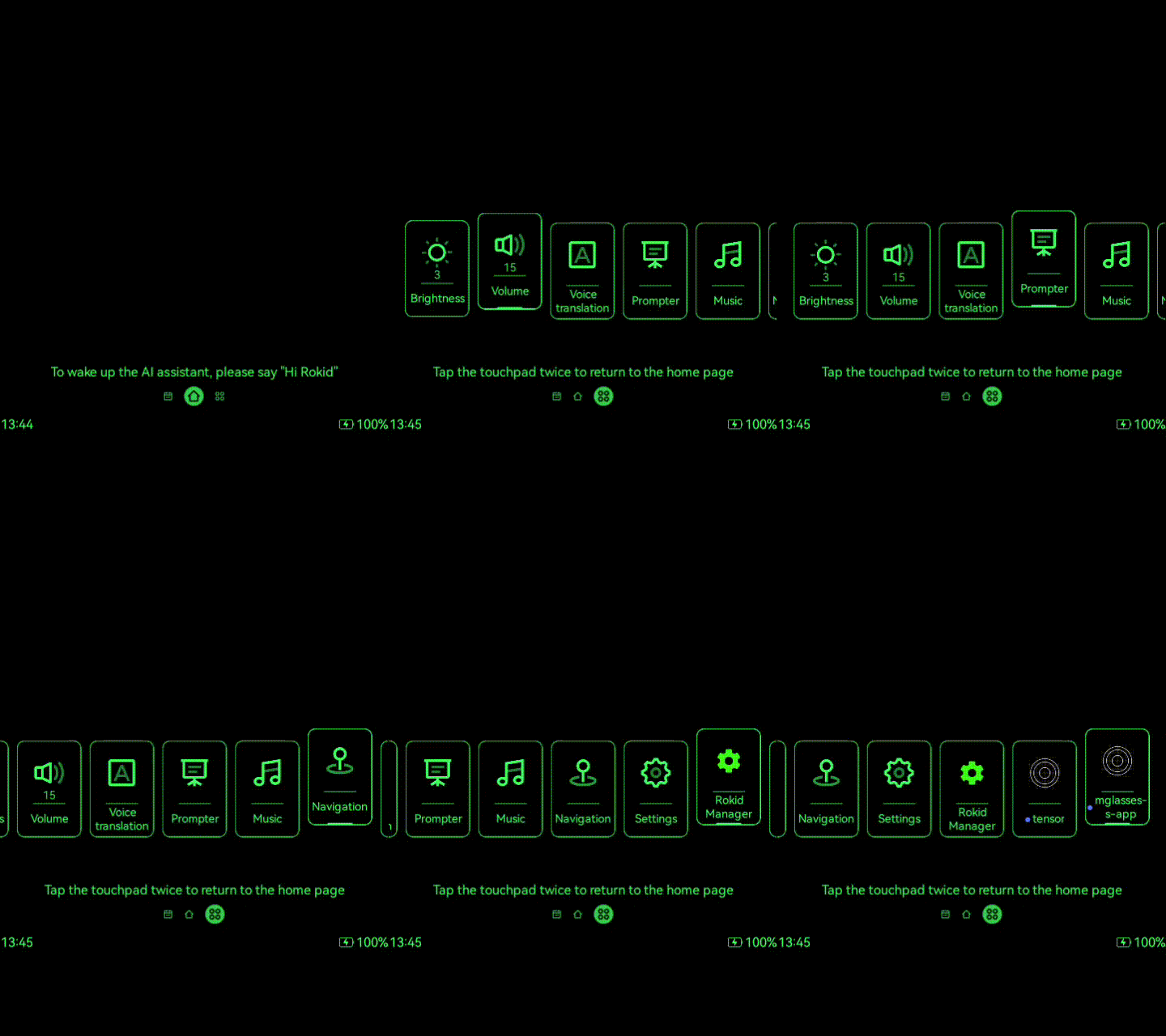
Capturing screenshots and recording the screen directly from your Rokid glasses can be very useful for debugging, documentation, or demos.
1. Prerequisites
Requirements:
adbinstalled on your computer and available in your terminal/command prompt- USB debugging enabled on the glasses
- The glasses connected to your computer via USB
You can verify that ADB sees your device with:
adb devices
You should see a line with a device ID and the device status.
2. Basic Screenshot to Local File
The simplest way to capture a screenshot and save it directly to your computer is:
adb exec-out screencap -p > screen.png
This command:
- Runs
screencapon the device - Streams PNG data to your computer
- Redirects it into
screen.pngin the current directory
You can change screen.png to any filename and path you prefer.
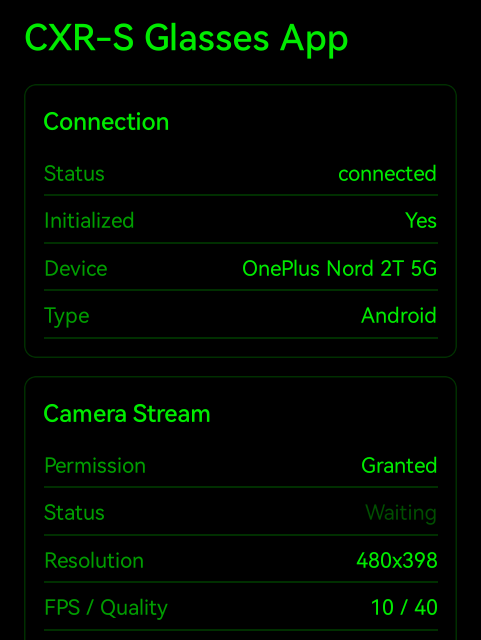
🎨 Color Note:
The Rokid glasses display uses a green-channel view, but the captured screenshot may contain other color channels. Don’t be surprised if the resulting image looks different from what you see through the glasses.
3. Screenshot via Device Storage
If you prefer to save the screenshot on the device first and then pull it:
adb shell screencap -p /sdcard/screen.png
adb pull /sdcard/screen.png
This will:
- Create
/sdcard/screen.pngon the device - Copy it to your current directory on the computer
4. Recording the Screen
To record a video of the glasses screen, use screenrecord. Unlike screenshots, screenrecord does not support exec-out, so you must save the recording to the device storage first and then pull it.
-
Start the recording:
adb shell screenrecord /sdcard/recording.mp4The recording runs until you press Ctrl+C in the terminal.
-
Pull the recording to your computer:
adb pull /sdcard/recording.mp4
🎨 Color Note:
Same as with screenshots — the glasses display shows a green-channel view, but the recorded video may contain other color channels.
5. Handling Multiple Connected Devices
If more than one Android device is connected (phone, emulator, multiple glasses), adb may show an error like more than one device/emulator.
In that case:
-
List all devices:
adb devicesYou will see device IDs such as
emulator-5554,7f1c864e, or192.168.0.10:5555. -
Use the
-sflag to target a specific device:adb -s <device-id> exec-out screencap -p > screen.pngor, with the two‑step method:
adb -s <device-id> shell screencap -p /sdcard/screen.pngadb -s <device-id> pull /sdcard/screen.pngReplace
<device-id>with the value fromadb devices, for example:adb -s 7f1c864e exec-out screencap -p > screen.pngThis ensures the screenshot is taken from the correct device.
💡 Tips:
- Keep a small script or shell function that runs your preferred screenshot command with a timestamped filename.
- If screenshots fail, re‑check USB debugging, reconnect the cable, and confirm the device appears in
adb devices.