[ROKID] Getting the Development Cable
![[ROKID] Getting the Development Cable](/adam.webp)
The standard 3-pin charging cable does not support ADB debugging. To develop applications for Rokid AI Glasses, you need the 5-pin development cable.
1. Ordering the Cable
1.1. Go to the Official Website
Navigate to the Rokid Glasses Prototype page: https://global.rokid.com/products/rokid-glasses-prototype
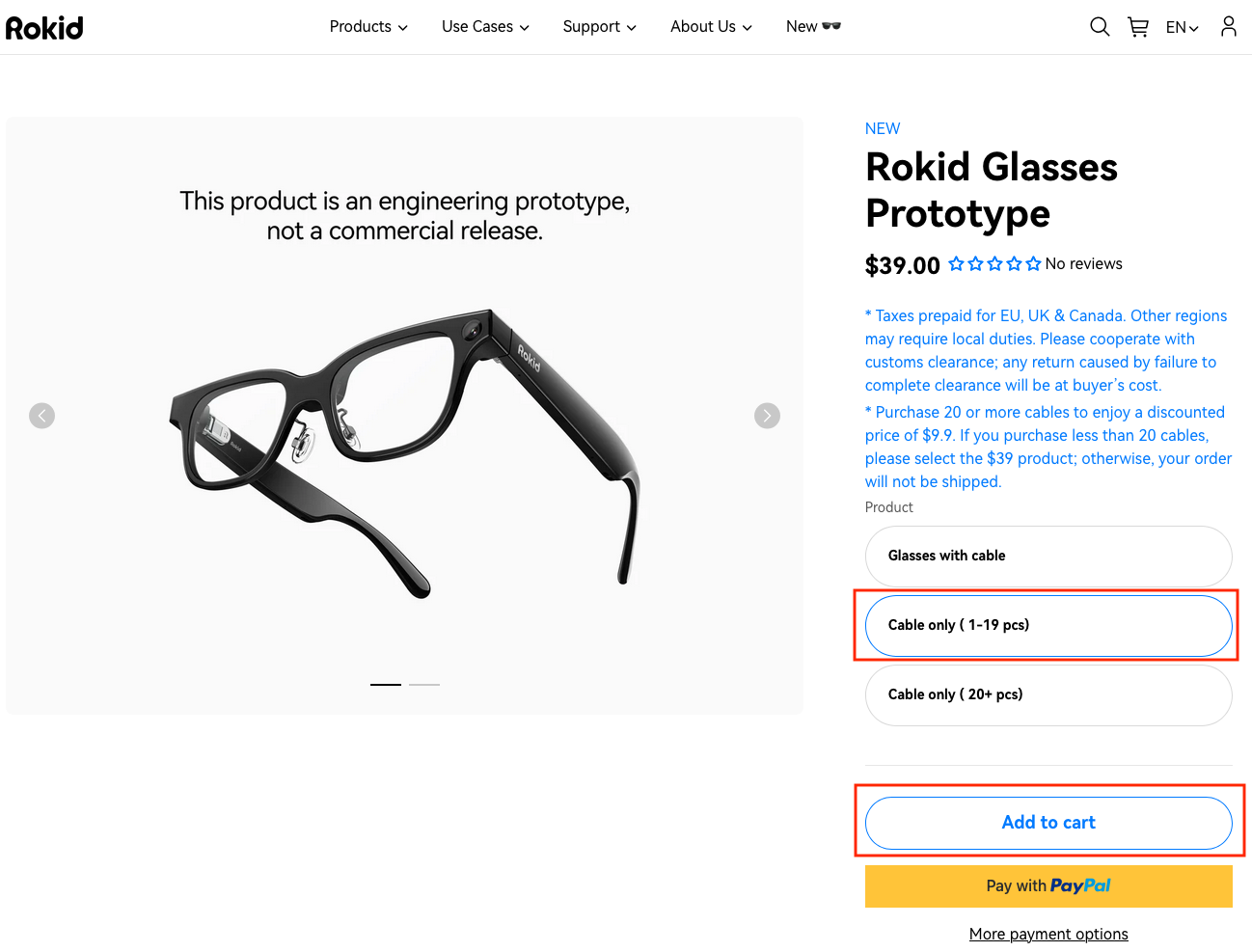
1.2. Select the Cable Only Option
Choose the Cable only option, which changes the price from $9,999.00 to $39.99, then press Add to cart.
1.3. Complete the Checkout
Complete your purchase using PayPal, Card, Apple Pay, or Google Pay.
📦 Shipping Note:
In my case, delivery took approximately 2 weeks after purchase.
💰 Tax Note:
VAT/Tariffs may apply to your purchase. As an EU citizen, I had to pay VAT upon delivery.
2. Development Setup
Once you receive your cable, you can start developing Android applications using the CXR-S SDK.
2.1. Enable ADB Debugging
- Open the Hi Rokid app on your Android/iOS device
- Enable ADB Debugging for the connected glasses
2.2. Connect to Your Computer
- Connect the glasses to your computer using the development cable
- Run
adb devicesto verify the connection (glasses should appear in the list) - In Android Studio, you should see the device:

3. Installing Third-Party APKs via ADB
3.1. Example: Rokid Manager 1.5
Requirements:
adbinstalled on your computer (required for communication with Rokid AI Glasses)
Installation Steps:
- Download the Rokid Manager APK file: Google Drive Link
- Run the installation command:
adb install /path/to/rokid-manager-file.apk
Replace /path/to/rokid-manager-file.apk with the actual path to your downloaded APK file.